
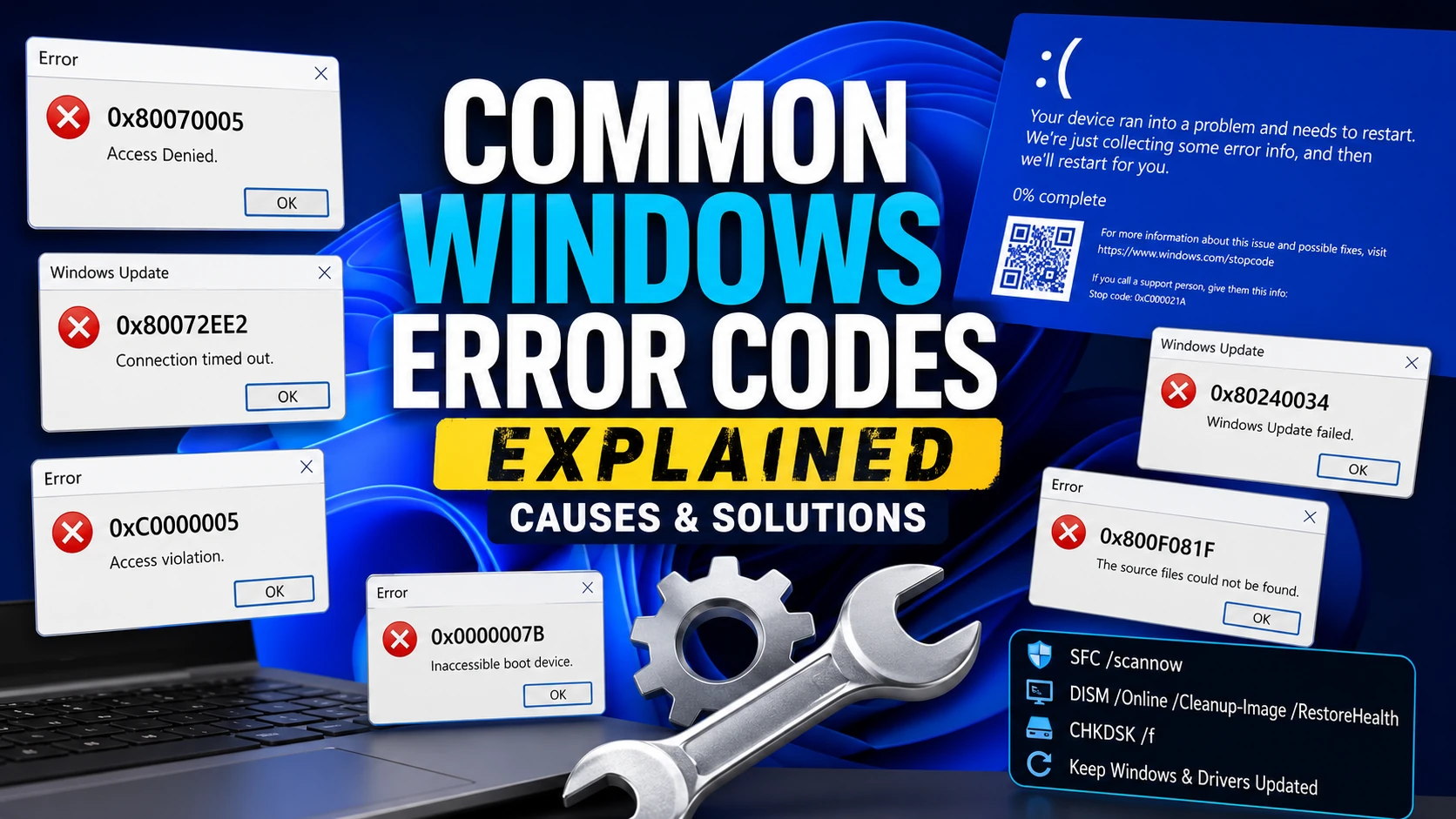
Windows error codes point to specific problems. This guide covers ten of the most common codes, their causes, and the fixes.
What Are Windows Error Codes?
Windows error codes identify a specific problem encountered by the operating system or an application. The code helps narrow down the cause and determine the right troubleshooting steps. Most codes appear as a hexadecimal number (starting with 0x) accompanied by a short description.
Some codes relate to Windows Update, others to boot failures, memory access violations, or system file corruption. The list below covers the codes you are most likely to encounter.
0x80070005 – Access Denied
What it means: Windows or an application lacks the required permissions to access a file, folder, registry key, or system resource.
Common causes:
- Insufficient user permissions
- Antivirus or security software blocking access
- Corrupted Windows permissions
- Windows Update permission issues
How to fix it:
- Run the application as Administrator.
- Verify file and folder permissions.
- Temporarily disable third-party antivirus software.
- Restart the Windows Update service if updates are failing.
- Run the System File Checker (SFC).
0x80070057 – Invalid Parameter
What it means: Windows received an invalid or unexpected parameter during an operation.
Common causes:
- Corrupted system files
- Windows Update issues
- Disk errors
- Incorrect application settings
How to fix it:
- Restart your computer.
- Run:
sfc /scannow - Follow it with:
DISM /Online /Cleanup-Image /RestoreHealth - Check your drive for errors:
chkdsk /f
0x80070422 – Required Service Disabled
What it means: A Windows service required for the operation is disabled, most commonly Windows Update.
Common causes:
- Windows Update service disabled
- Disabled Background Intelligent Transfer Service (BITS)
- Security software changing service settings
How to fix it:
- Press Win + R.
- Type:
services.msc - Locate Windows Update.
- Set Startup Type to Automatic.
- Start the service if it is stopped.
Repeat these steps for the Background Intelligent Transfer Service (BITS) if necessary.
0x80072EE2 – Connection Timeout
What it means: Windows could not establish a connection to Microsoft's update servers before the request timed out.
Common causes:
- Poor internet connection
- Firewall restrictions
- Proxy configuration
- VPN interference
- ISP connectivity problems
How to fix it:
- Test your internet connection.
- Disable VPN software temporarily.
- Check firewall settings.
- Remove incorrect proxy settings.
- Restart your modem or router.
Users in South Africa may hit this error more frequently due to ISP routing or temporary network congestion. If the issue persists across multiple devices, contact your internet service provider.
0x800F081F – Missing System Files
What it means: Windows cannot locate the files required to complete an update or install optional Windows features such as the .NET Framework.
Common causes:
- Corrupted Windows component store
- Missing update files
- Damaged installation image
How to fix it:
Run: DISM /Online /Cleanup-Image /RestoreHealth
Then run: sfc /scannow
If the issue persists, a Windows installation ISO may serve as the repair source.
0xC0000005 – Access Violation
What it means: A program tried to read or write memory it was not permitted to access.
Common causes:
- Faulty RAM
- Corrupted application files
- Driver conflicts
- Malware
- Overclocking instability
How to fix it:
- Update graphics and chipset drivers.
- Reinstall the affected application.
- Scan for malware.
- Run Windows Memory Diagnostic.
- Disable unstable overclocking settings.
0xC000021A – Critical System Process Failed
What it means: Windows encountered a fatal error because a critical system process, such as Winlogon or CSRSS, stopped unexpectedly.
Common causes:
- Corrupted system files
- Failed Windows updates
- Driver problems
- Malware
How to fix it:
- Boot into Safe Mode.
- Run System Restore.
- Perform Startup Repair.
- Run SFC and DISM.
- Remove recently installed drivers or software.
0x0000007B – Inaccessible Boot Device
What it means: Windows cannot access the drive containing the operating system during startup.
Common causes:
- Corrupted boot configuration
- Incorrect SATA mode
- Storage driver issues
- Failing SSD or HDD
How to fix it:
- Verify BIOS storage settings.
- Check SATA or NVMe drivers.
- Inspect drive health using SMART diagnostics.
- Repair the boot configuration using Windows Recovery.
Persistent occurrences point to failing storage hardware.
0x0000003B – System Service Exception
What it means: A system service generated an exception that Windows could not recover from, resulting in a Blue Screen of Death (BSOD).
Common causes:
- Faulty drivers
- Corrupted RAM
- Graphics driver problems
- Damaged system files
How to fix it:
- Update device drivers.
- Run Windows Memory Diagnostic.
- Check system files with SFC and DISM.
- Install the latest Windows updates.
0x80240034 – Windows Update Failed
What it means: A Windows Update did not complete.
Common causes:
- Interrupted downloads
- Corrupted update cache
- Windows Update service issues
How to fix it:
- Retry the update.
- Run the Windows Update Troubleshooter.
- Clear the Windows Update cache.
- Restart the Windows Update service.
Universal Windows Troubleshooting Steps
Microsoft's built-in repair tools resolve many common Windows problems before more advanced troubleshooting becomes necessary.
Restart Your PC
A reboot clears temporary glitches, locked files, and incomplete processes.
Run the Windows Update Troubleshooter
Windows includes a troubleshooter that detects and repairs many update-related problems.
Repair Corrupted System Files
Open Command Prompt as Administrator and run: sfc /scannow
Repair the Windows Component Store
If SFC cannot repair files, run: DISM /Online /Cleanup-Image /RestoreHealth
Check Your Storage Drive
Run: chkdsk /f
You may need to schedule the scan during the next restart.
Keep Windows and Drivers Updated
Installing the latest Windows updates and manufacturer-provided drivers prevents many common errors.
Skip the Commands with Software Essentials
Running SFC, DISM, and other repair commands manually takes time and requires opening Command Prompt as Administrator. Compourri Software Essentials bundles these fixes into one-click solutions under the Fixes section in the Config tab.
- System Corruption Scan — runs SFC and DISM automatically to find and repair corrupted system files.
- Reset Network — restores network adapters and TCP/IP stack to default settings.
- Reset Windows Update — clears the update cache and restarts the Windows Update service.
Launch Software Essentials directly from a PowerShell terminal:
irm compourri.co.za/essentials | iex
No installation required. Run it once, select the fix you need, and let it handle the rest.
When Should You Seek Professional Help?
Recurring Windows errors can point to hardware failures rather than software problems. If you experience Blue Screens, boot failures, or memory-related crashes after completing the troubleshooting steps above, professional diagnosis may be necessary.
Faulty RAM, failing SSDs or hard drives, damaged motherboards, or unstable power supplies require specialised testing and hardware replacement. Account-level issues, such as a stolen or locked Microsoft account, follow a different path entirely. See our guide on Microsoft account recovery problems for details.
Final Thoughts
Windows error codes are clues that point to the problem. Understanding what each code means saves hours of troubleshooting and helps you apply the correct fix.
Start with Microsoft's built-in repair tools, including SFC, DISM, CHKDSK, and the Windows Update Troubleshooter. These resolve many common issues. For a quicker path, Software Essentials bundles these fixes into one-click solutions. If problems persist, investigate hardware health or seek professional assistance.